How to Maintain Your Website After Launch
The launch is not the finish line. It is the first day your website starts accumulating maintenance debt. That sounds dramatic until the first plugin update breaks a form, the homepage slows down on mobile, or a contact submission disappears into the void. I would rather inherit a site with a modest maintenance calendar than a beautiful site nobody touches. Beauty without upkeep is just a future problem with better typography.
If you are wondering how often should I update this thing, what should I back up, what should I check every month, and when does maintenance become a business issue instead of a technical chore?, you are asking the right questions. WordPress recommends keeping core software current, Google says Core Web Vitals measure real-world loading and visual stability, and OWASP still treats web security as an ongoing risk discipline rather than a one-time setup. Those are not decorative recommendations. They are the operating instructions.
Here is what this guide covers: why maintenance matters, what to update and back up, how to monitor speed and stability, how to keep content fresh, and how to avoid preventable security mistakes. If you own the site, manage the site, or get blamed when the site misbehaves, this is the part that saves time later. It also saves apologies, which are more expensive than backups.
Why maintenance is crucial
A website is not a framed poster you hang once and admire forever. It is a living business asset. Hosting changes, software changes, browsers change, security threats change, and your own content changes. If the site is ignored long enough, the damage usually shows up in one of three places: customer trust, search visibility, or conversion rate. Sometimes all three arrive at the same meeting.
The main mistake businesses make is thinking maintenance is only for emergencies. It is not. Maintenance is the routine work that prevents emergencies from becoming expensive. A broken form means lost leads. A slow page means impatient visitors. An outdated plugin means an avoidable security risk. A stale homepage means the site is technically open for business while quietly telling people it is not being managed.
That is why I treat post-launch care as a business process. The design phase builds the storefront. The maintenance phase keeps the lights on, the doors unlocked, and the register from inventing its own rules.
A simple way to think about risk
| Maintenance area | What happens if you ignore it | Business impact |
|---|---|---|
| Updates | Security holes, broken features, compatibility issues | Unplanned downtime and repair costs |
| Backups | No clean restore point after a failure | Longer recovery and higher stress |
| Performance | Slow pages, poor mobile experience, lower engagement | Fewer conversions and weaker search performance |
| Content | Outdated services, stale offers, broken links | Lost trust and confused visitors |
| Security | Spam, attacks, unauthorized access | Recovery work and possible reputation damage |
If that table feels unromantic, good. Maintenance is not a romance novel. It is closer to accounting with fewer smiles and more consequences.
Regular updates and backups
The first maintenance rule is simple: update what needs updating, and keep a backup before you touch anything important. WordPress documents both one-click and manual update paths in its WordPress update guide, which is a reminder that updates are normal site operations, not a special event. If you have plugins and themes installed, they need the same attention. Software that never changes is usually software that is becoming a liability.
The second rule is just as important: do not confuse “I clicked update” with “the site is safe.” Backups are the difference between a nuisance and a disaster. A backup that has never been tested is only a hopeful file. You need to know you can restore it, not merely store it. That is the business version of a spare key that does not fit the lock.
What to update
- WordPress core
- Theme files and child theme changes
- Plugins that affect forms, SEO, caching, security, or editing
- PHP and hosting-level components when your provider recommends it
- Any third-party integrations tied to payments, analytics, or email delivery
What to back up
- Database content
- Uploaded media files
- Theme files and custom templates
- Custom code snippets and configuration notes
- Contact form settings and integration keys, stored securely
When I build a maintenance routine, I like to separate routine updates from risky updates. Routine updates are low-drama changes, such as minor WordPress releases or well-supported plugin patches. Risky updates are larger jumps, plugin replacements, or anything touching the checkout path, forms, or custom templates. Those deserve a backup, a staging check if available, and a quick post-update review of the pages that matter most.
If the site has a mission-critical function, test the restore process at least once. The first time you learn whether a backup works should not be during a bad day.
A practical update cadence
| Cadence | Task | Why it matters |
|---|---|---|
| Weekly | Check for updates, review form submissions, confirm backups ran | Stops small problems from spreading |
| Monthly | Update software, test a restore point, verify key pages and links | Protects business continuity |
| Quarterly | Review plugins, remove unused tools, confirm hosting and PHP status | Reduces technical clutter and compatibility risk |
| As needed | Patch urgent security issues immediately | Prevents known vulnerabilities from lingering |
That cadence is not sacred. It is a starting point for a normal small-business site where one or two people are carrying the workload. If the site is busier, older, or tied to sales, the frequency should rise with the stakes.
Monitoring performance
Speed is not a vanity metric. It is a user experience metric, and Google’s Core Web Vitals guidance explains that loading performance, interactivity, and visual stability matter in real-world browsing. In plain English: if the site feels slow or jumpy, people notice, and they leave. They do not send a polite note first.
For deeper context, MDN’s web performance guide is useful because it treats performance as something you measure and manage, not guess at. That is the correct mindset. A site that “seems fine” in your office may still be frustrating on a mid-range phone with a weak connection. Most visitors are not sitting on fiber in a calm conference room.
Performance monitoring should focus on the pages and actions that matter most: the homepage, service pages, contact forms, mobile navigation, and whatever page turns interest into an inquiry. If those paths are slow, broken, or unstable, maintenance stops being a technical category and becomes a revenue leak.
What to watch
- Page load speed on mobile and desktop
- Layout stability when images or fonts load
- Form submission success and confirmation behavior
- 404 errors and broken internal links
- Search Console warnings and indexing issues
- Server errors, timeout messages, or plugin conflicts
When I review a site, I start with the pages visitors are most likely to use and the pages the business most wants them to use. Those are not always the same thing, which is why maintenance has to respect the customer journey, not just the internal org chart.
What performance work usually looks like
- Compress images before or after upload
- Remove unnecessary scripts and plugins
- Use caching where the hosting stack supports it
- Limit oversized hero media that pushes the page down
- Check the site on a real phone, not just a polished desktop browser
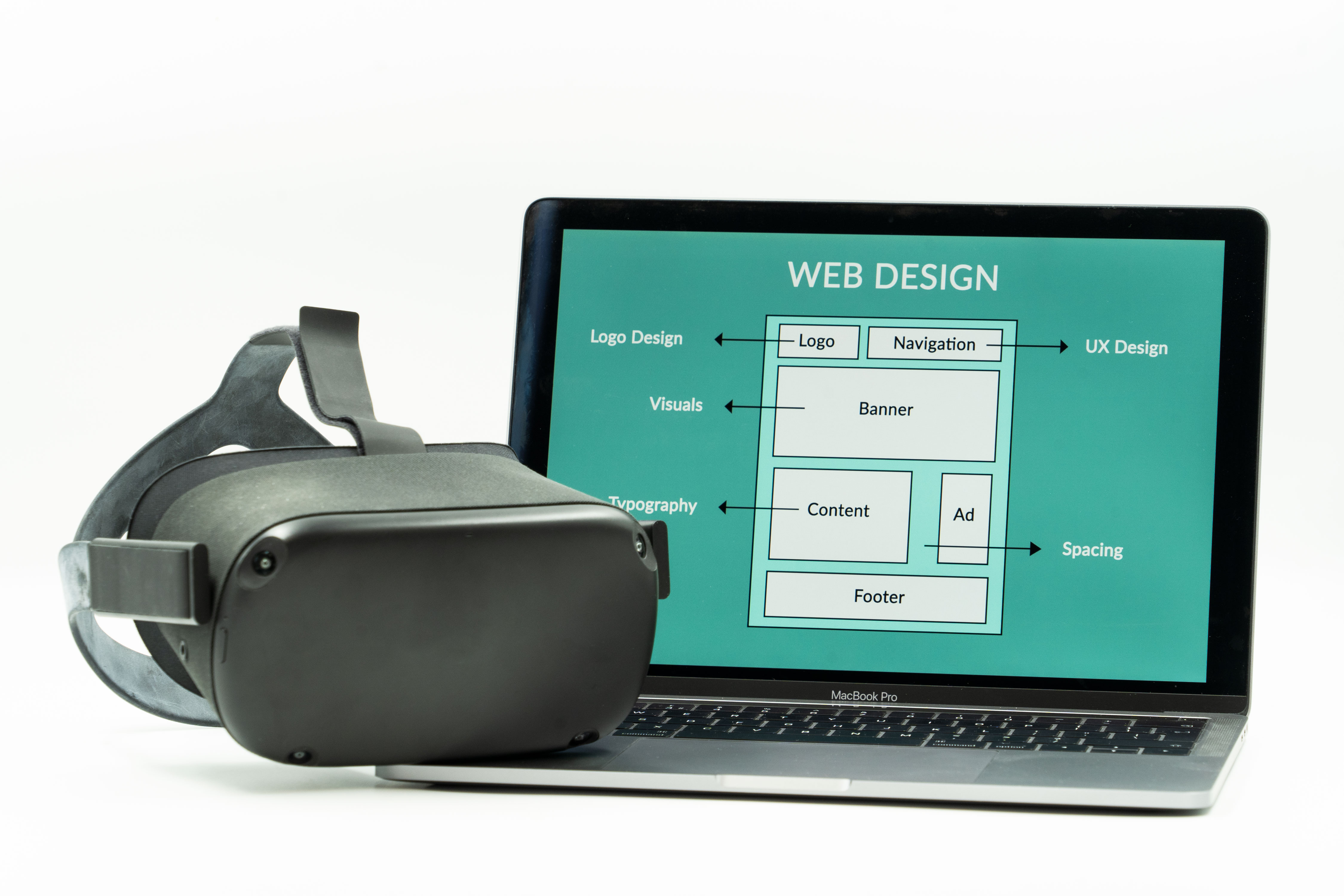
The image in this article is here for a reason. The same site that looks polished on a desktop can be awkward on a phone, and launch-day perfection does not protect you from later drift. If you have not looked at the site on a small screen in a while, you are not monitoring. You are reminiscing.
Content updates
Content ages faster than business owners expect. A page can remain technically online and still become misleading, stale, or incomplete. Services evolve. Staff changes. Hours change. Offers change. Portfolio items age out. Testimonials become dated. A website that never changes starts to look like a business that stopped paying attention.
This is where maintenance becomes editorial. You are not rewriting the whole site every month. You are making sure the site still tells the truth and still supports the current offer. If the business has a clear services page, it should point people toward current work, not yesterday’s priorities. If you need a clean place to direct a visitor, the Services page should do real work, not sit there looking respectable.
Content that deserves regular review
- Homepage hero text and call to action
- Service descriptions and pricing language
- Contact details and support instructions
- Testimonials, case studies, and examples
- Blog posts that reference outdated tools, policies, or screenshots
- Footer links and utility pages
There are two kinds of stale content. The first is harmless, like a blog post from years ago that still offers useful context. The second is dangerous, like a contact page that sends people to an email address nobody monitors or a service page that advertises something the business no longer offers. The second kind needs immediate correction. It does not matter how elegant the prose is if it sends the wrong signal.
A useful habit is to maintain a short content inventory. Keep a list of high-value pages, the last date they were reviewed, and the next date they should be checked. This does not need a complex system. It needs discipline. A spreadsheet has broken fewer businesses than a “we will remember later” plan.
Monthly content questions
- Does this page still reflect the current offer?
- Would a first-time visitor understand what happens next?
- Are there broken links, old screenshots, or outdated references?
- Is the call to action clear enough to support the business goal?
- Should this page link to a more relevant page or update its wording?
If the answer to any of those is “I am not sure,” that is already a maintenance task.
Security best practices
Security is not a once-a-year panic event. OWASP’s Top Ten remains a useful reminder that web applications fail in repeatable ways, and the point of maintenance is to stop those failure patterns from becoming your problem. For a WordPress site, the usual weak points are predictable: unpatched software, weak passwords, too many admin users, abandoned plugins, and overly generous permissions.
WordPress also recommends keeping the platform updated, and its guidance on updating PHP is worth reading when the hosting environment becomes part of the maintenance discussion. Old PHP versions are not a personality trait. They are an exposure.
Security habits worth keeping
- Use strong, unique passwords and multi-factor authentication where available
- Remove old administrator accounts and unused plugins
- Update software promptly when patches are released
- Limit access to only the people who need it
- Back up before any significant change
- Log out devices and sessions that are no longer in use
One of the most practical security moves is also the least glamorous: remove what you do not need. Every unused plugin is a decision point you no longer have to defend, and every old account is one less doorway into the site. Security gets easier when the site has fewer parts.
If you run forms, collect customer inquiries, or rely on the website to support business operations, security also includes verification. Test that form messages go where they should. Review spam filtering. Confirm backups are actually stored where you expect. A site can look secure and still fail at the only thing that matters: helping the right person reach the right page without drama.
A maintenance rhythm that does not collapse
The best maintenance plan is the one that survives a busy week. If the process depends on heroic memory, it will fail the first time the business gets busy. A realistic rhythm is better: one weekly check, one monthly update window, one quarterly review, and a clear way to call for help when something breaks beyond the local skill set.
For many small businesses, that means deciding in advance what is handled in-house and what is handed off. The decision itself is the work. If the site is important enough to drive leads, sales, or credibility, it is important enough to have a maintenance owner. If you need help defining that line, the smartest place to start is usually a conversation about scope, not a rescue mission after the site has already failed.
That is where the business case gets simple. Maintenance costs less than recovery. It costs less than lost leads. It costs less than explaining to customers why the form stopped working last week. The line item looks small because the alternative tends to arrive in pieces.
Keep a maintenance log
A maintenance log is not bureaucracy for its own sake. It is the memory the website needs when people change roles, vendors change, or the original launch team is no longer the one making decisions. Write down what was updated, when it was updated, who approved it, and what was checked afterward. That one habit makes troubleshooting faster and prevents the same problem from being solved twice with equal confidence, which is how avoidable work becomes a tradition.
The log can be simple. For a smaller site, a shared document or spreadsheet is enough. Use columns for date, task, page or plugin affected, result, and next follow-up date. For a busier site, add backup location, restore test status, and known dependencies. The goal is not paperwork. The goal is a clean trail that tells the next person what already happened and what still needs attention.
This is especially useful when maintenance is shared between a business owner, an employee, and an outside designer or developer. Without a log, everyone assumes somebody else handled the job. With one, there is less guessing, fewer duplicate fixes, and a much smaller chance that a site problem turns into a blame session. Clarity is cheaper than memory and usually kinder to the calendar.
What to do next
If you want a quick way to manage your site after launch, start with these five actions:
- List the pages and functions that matter most to the business.
- Set a recurring update and backup schedule.
- Test the site on a phone, a tablet, and a desktop browser.
- Review the homepage, services, and contact paths for stale content.
- Write down who handles maintenance when something breaks.
That is enough to keep a lot of websites honest. Not perfect. Honest. In maintenance, honesty is the better metric.
If you want help turning that routine into something practical, start with a conversation through the Contact page. If you are still deciding what level of support makes sense, the Services page is the cleaner place to compare options than a frantic email thread at 4:57 p.m.
Key points to remember:
- Launch is the beginning of maintenance, not the end of the project.
- Updates and backups should be routine, not emergency-driven.
- Performance monitoring protects both user experience and business outcomes.
- Content drift is real, so pages need periodic review.
- Security is easier when maintenance removes old software, old accounts, and old assumptions.
Keep the site current, keep the backups tested, and keep the maintenance schedule boring. Boring is reliable. Reliable is profitable.